
Share Your Apple Health ECG Results With Your Physician
You can share individual ECG measures with your doctor by creating a PDF document through the Health app. Follow the steps below or download the instructions.
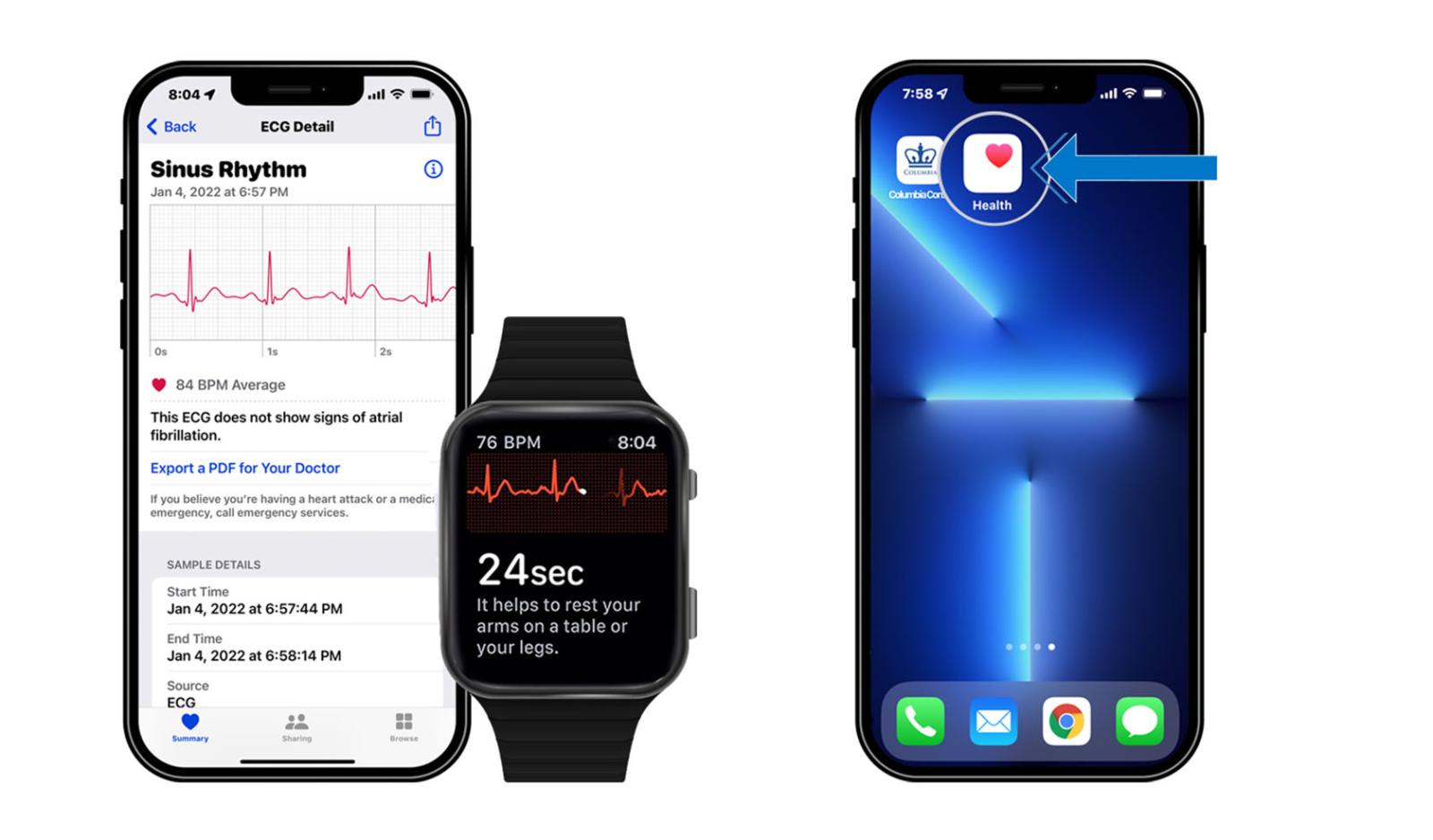
1. Download the Columbia Connect App and take an ECG with the ECG app on Apple Watch: Visit Apple Support.
2. Open the Health App.
Select Your Health Data

3. Tap “Show All Health Data”...
4. ...then, tap >“Electrocardiograms (ECG)”.

5. Tap your ECG Result.
6. Tap the “Share” button...
Share Your Health Data

7. ...and select Columbia Connect.
8. Log into your Patient Portal account.

9. Click “Continue”.
10. Select message type.
Send Your Data to Your Healthcare Provider

11. Choose provider.
12. Tap “Send”...
13. Message confirmation.